Invoices and payments: Bill, send and get paid
From the finished job to the money in your account. Use the map to go straight to what you need.
On this page
In CrewAcorn
How to create a quick invoice
- 1In the side menu, hover over Invoices and tap the yellow +.
- 2Choose the client, or type a new name.
- 3Write what was done.
- 4Write the amount.
- 5Choose when it’s due: today, in 7, 15 or 30 days.
- 6Tap Create invoice.
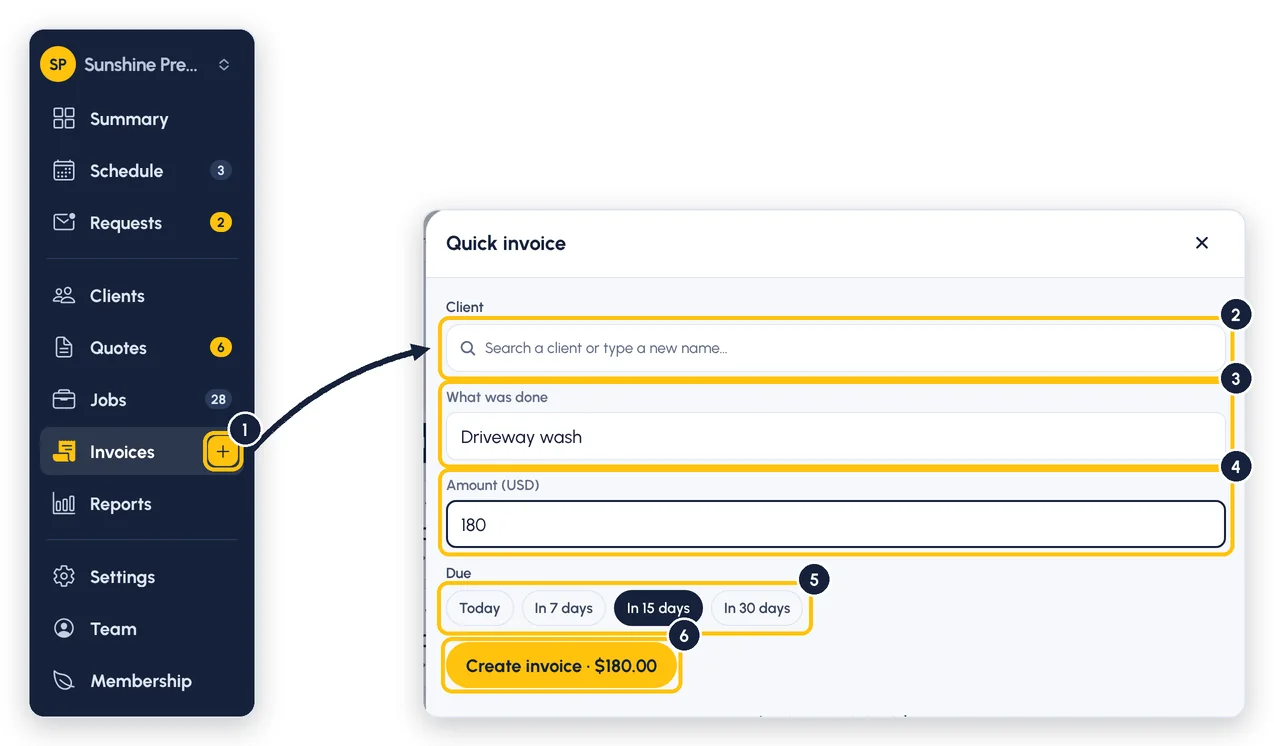
Did the work come from a job? Use Invoice an existing job and the details are filled in for you.
- 1Tap Create at the bottom and choose New invoice.
- 2Choose the client, or type a new name.
- 3Write what was done.
- 4Write the amount.
- 5Choose when it’s due: today, in 7, 15 or 30 days.
- 6Tap Create invoice.
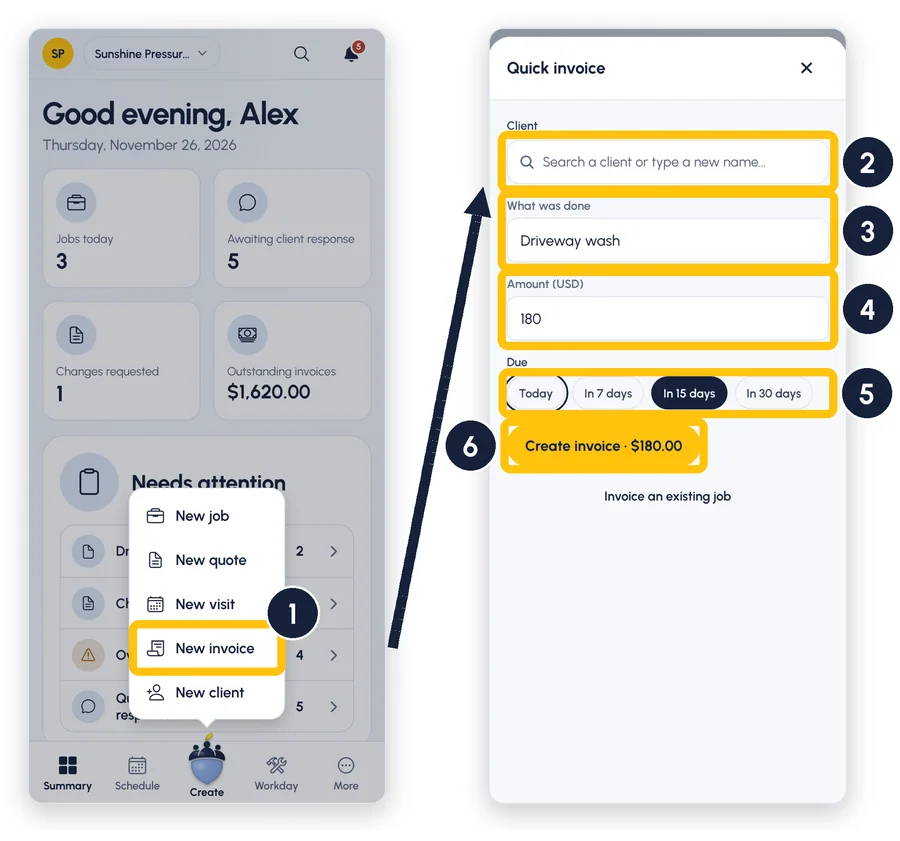
Did the work come from a job? Use Invoice an existing job and the details are filled in for you.
How to send an invoice
- 1In Invoices, tap the ⋯ of the invoice.
- 2Tap Send.
- 3Choose Text, WhatsApp, Email or Copy. The message is ready with the private link and you can change it.
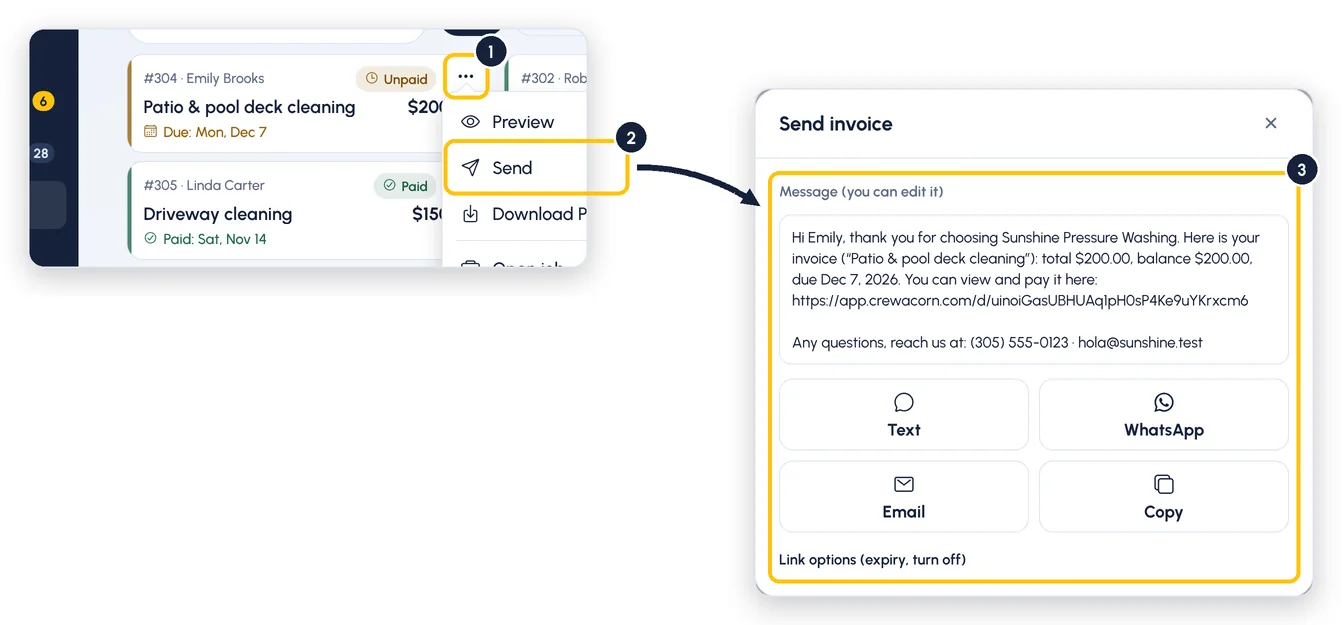
The same menu has Preview, Download PDF and Open job.
- 1In More → Invoices, tap the ⋯ of the invoice.
- 2Tap Send.
- 3Choose Text, WhatsApp, Email or Copy. The message is ready with the private link and you can change it.
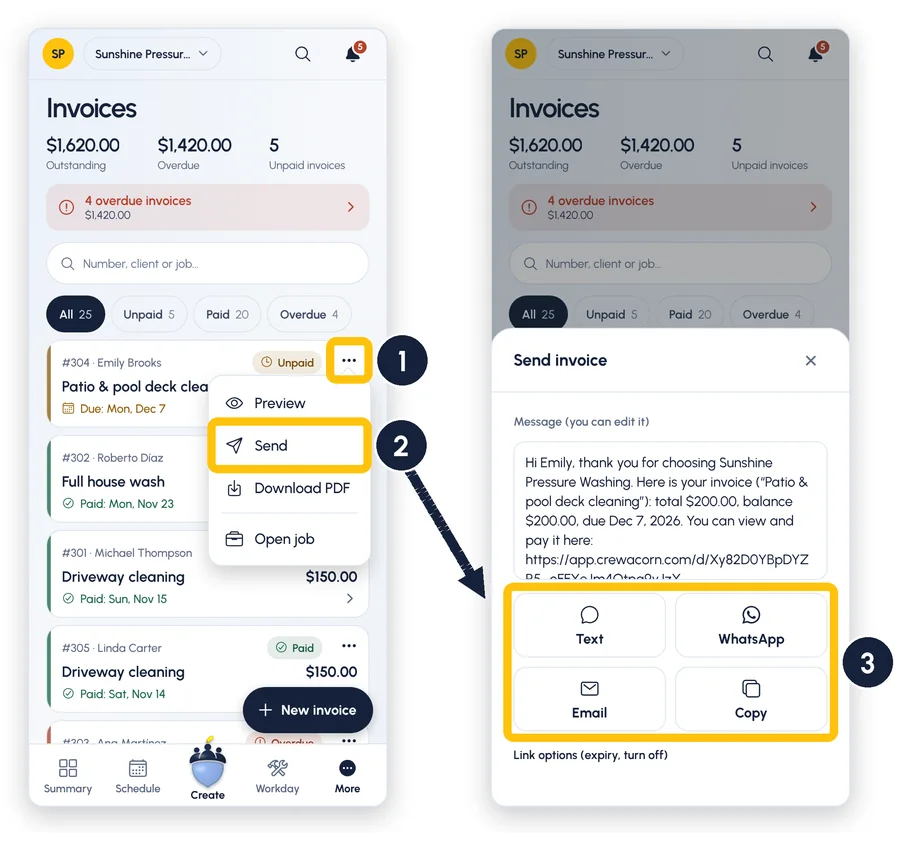
The same menu has Preview, Download PDF and Open job.
How to manage an invoice inside the job
- 1Send, Preview or Download PDF.
- 2The total, what’s been paid and the balance still owed.
- 3Record a payment when your client pays you in cash, by check or by transfer.
- 4Cancel invoice if it was a mistake. It stays in the history as cancelled.
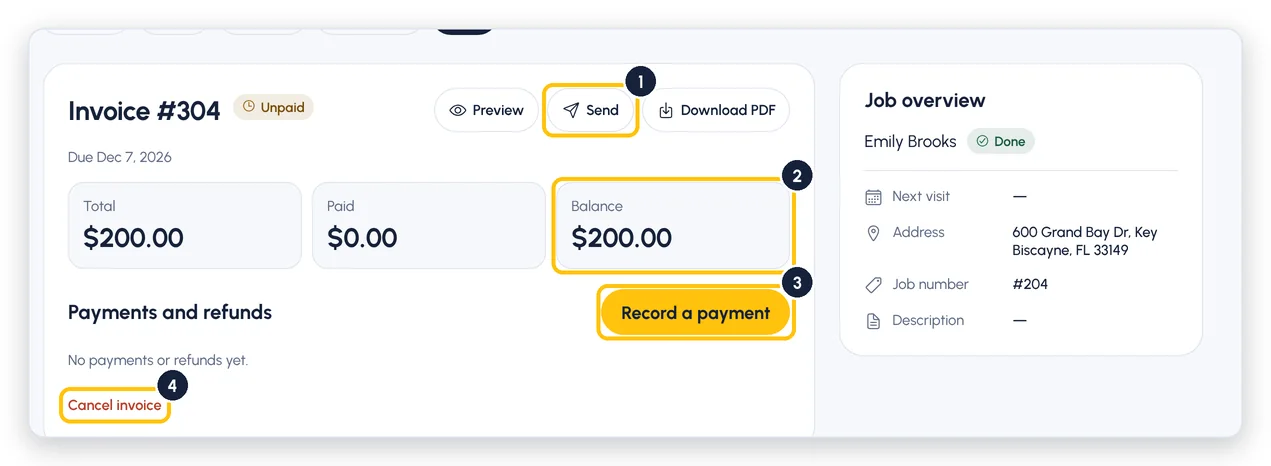
Open the job and go to the Billing tab. Payments and refunds are listed underneath.
- 1Open the job and tap the Billing tab.
- 2The total, what’s been paid and the balance still owed.
- 3Record a payment when your client pays you in cash, by check or by transfer.
- 4Cancel invoice if it was a mistake. It stays in the history as cancelled.
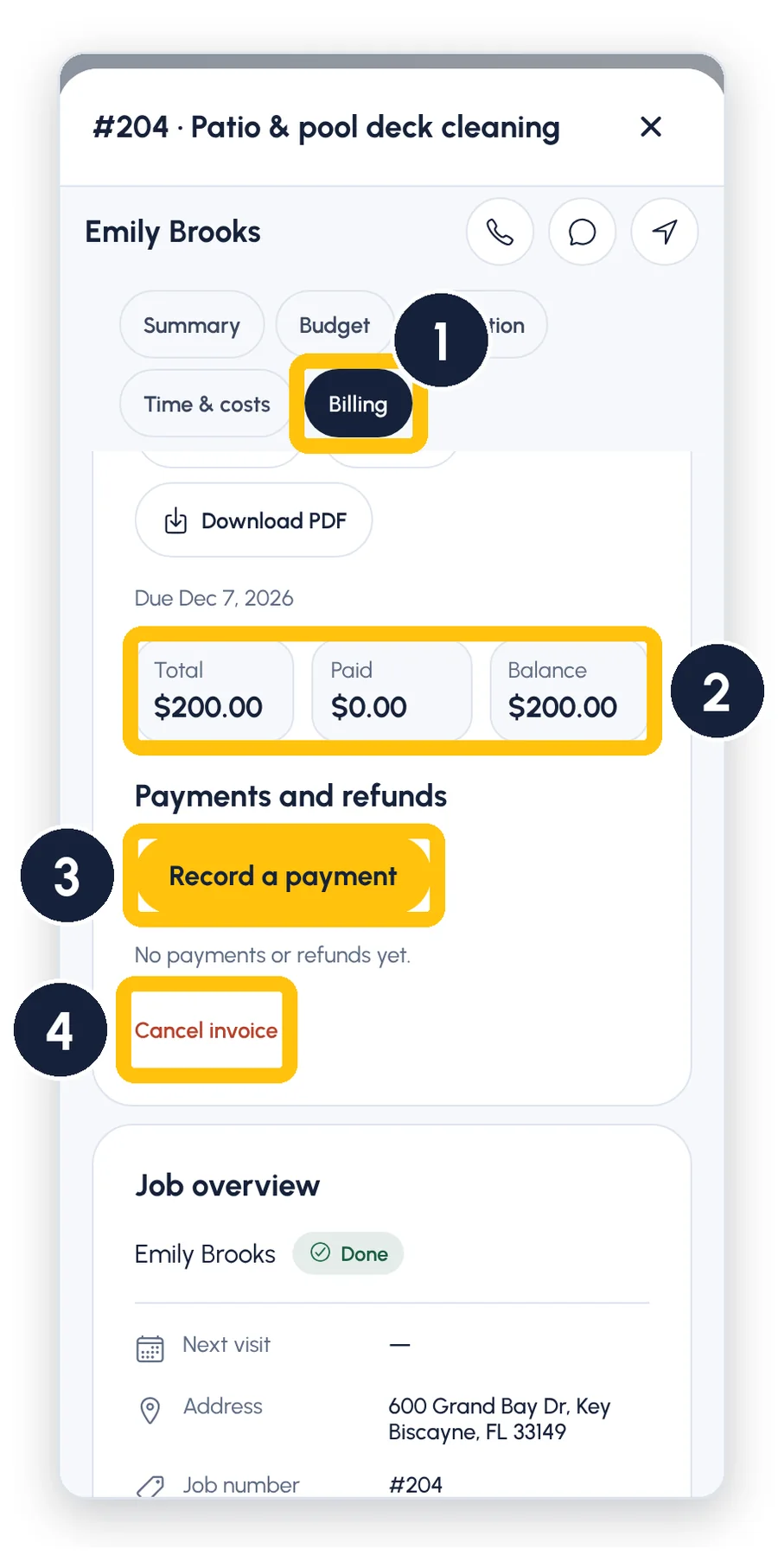
To get there from Invoices: ⋯ → Open job. Payments and refunds are listed underneath.
How to record a payment
- 1The amount received (it starts with the balance due) and the date.
- 2The method: cash, transfer, card, check or other.
- 3Tap Record payment. The balance updates and, if it reaches zero, the invoice shows as Paid.
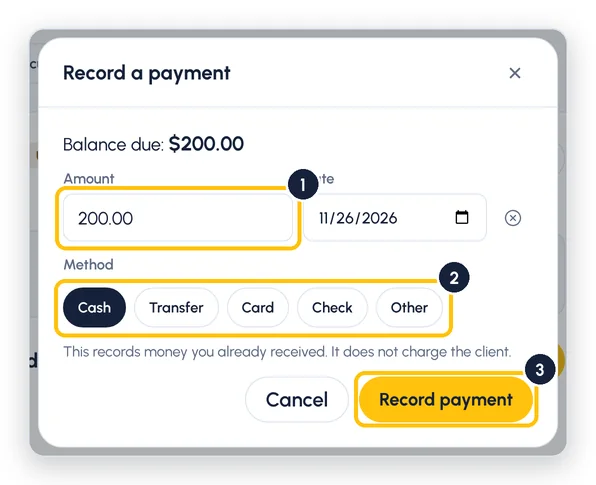
This only records money you already received. It doesn’t charge your client anything.
- 1The amount received (it starts with the balance due) and the date.
- 2The method: cash, transfer, card, check or other.
- 3Tap Record payment. The balance updates and, if it reaches zero, the invoice shows as Paid.
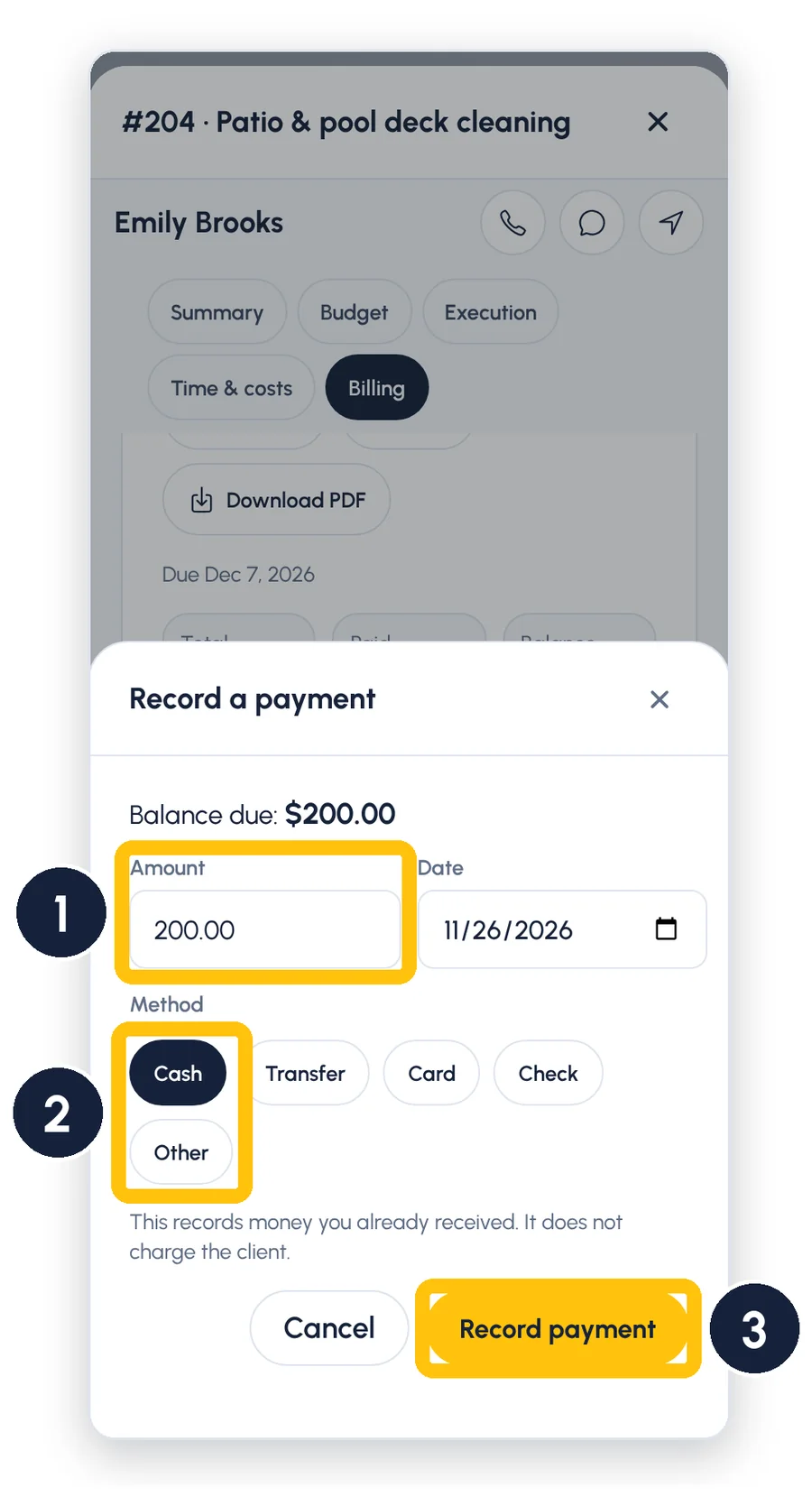
This only records money you already received. It doesn’t charge your client anything.
What your client sees
What your client sees
- 1Download PDF to keep a copy.
- 2What’s been paid and the balance due.
- 3Your payment instructions (Zelle, cash…), from your business details.
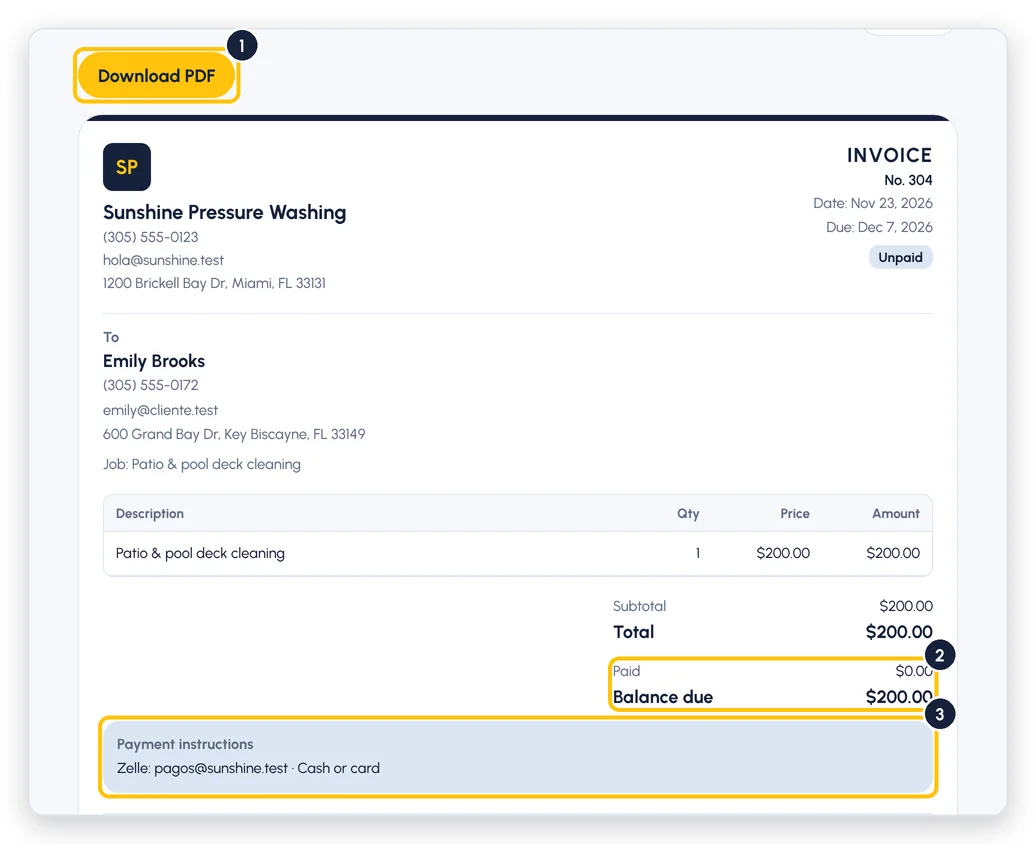
Your client opens the link in their browser, no app or account. If you turn on online payments in Settings, they also see Pay now (card or bank transfer, with Stripe).
- 1Download PDF to keep a copy.
- 2What’s been paid and the balance due.
- 3Your payment instructions (Zelle, cash…), from your business details.
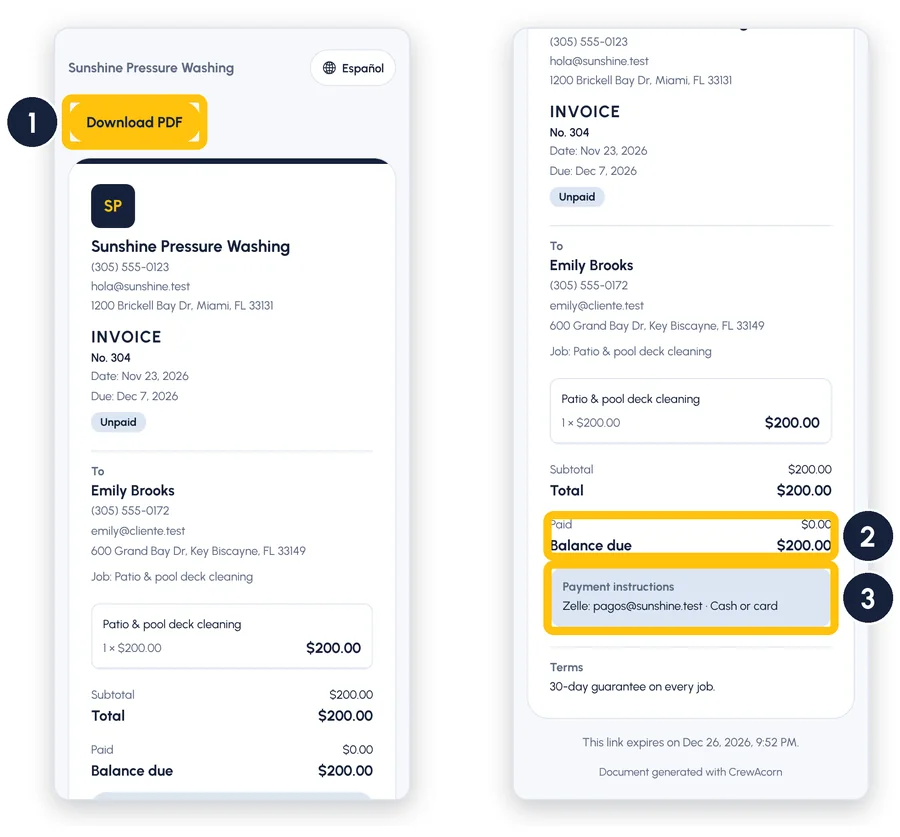
Your client opens the link in their browser, no app or account. If you turn on online payments in Settings, they also see Pay now (card or bank transfer, with Stripe).