Clients: Add, find and keep everything in one place
Your clients are the start of everything: quotes, jobs and invoices all hang from them.
On this page
How to add a client
- 1In the side menu, hover over Clients and tap the yellow +.
- 2Write the name of the person or company.
- 3Their phone (optional, but you’ll need it to text them the link).
- 4Their email (optional).
- 5The address of the property.
- 6Tap Create client.
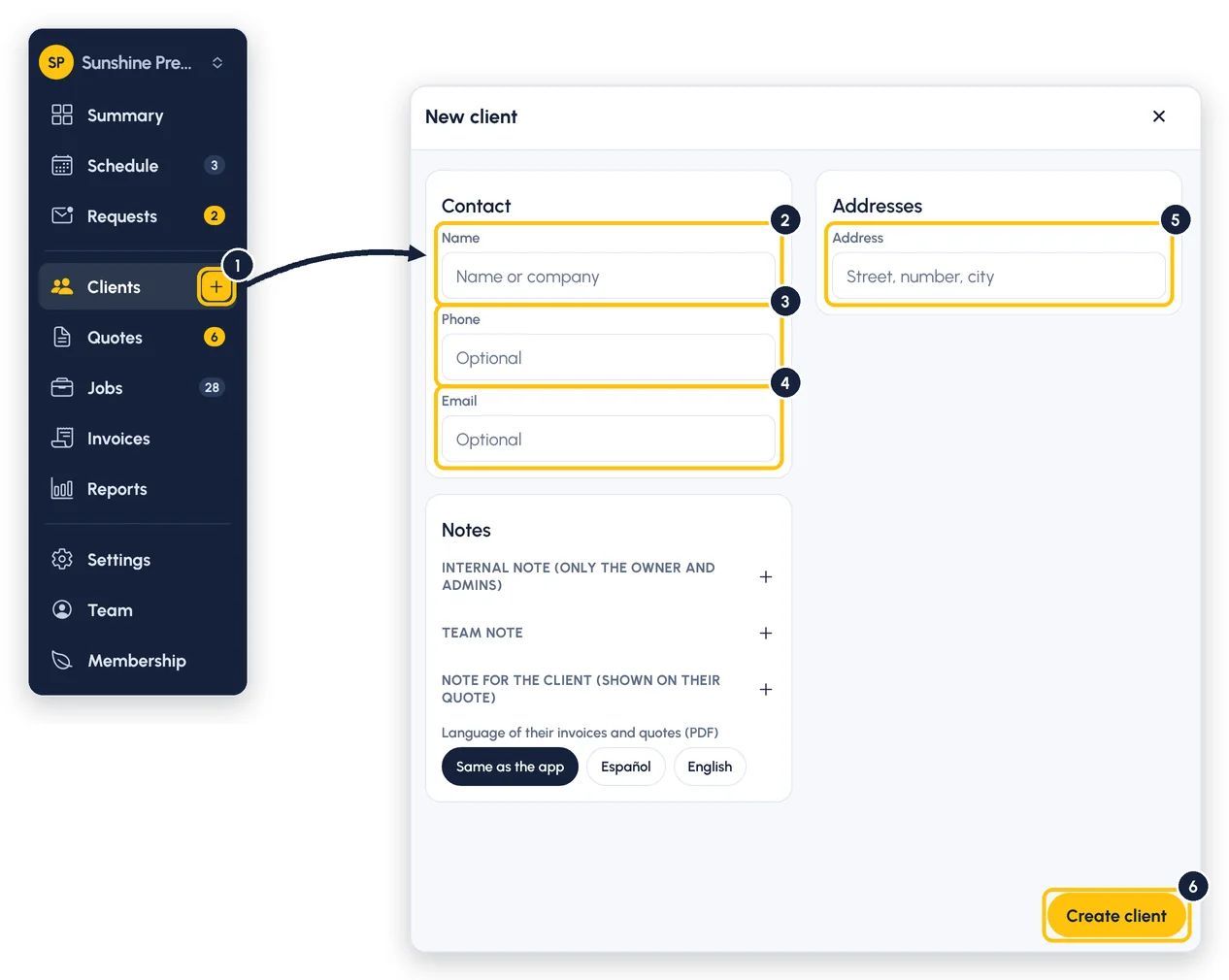
In Notes you can leave a private note, a note for your team, and choose the language of their quotes and invoices.
- 1Tap Create at the bottom and choose New client.
- 2Write the name of the person or company.
- 3Their phone (optional, but you’ll need it to text them the link).
- 4Their email (optional).
- 5The address of the property.
- 6Tap Create client.
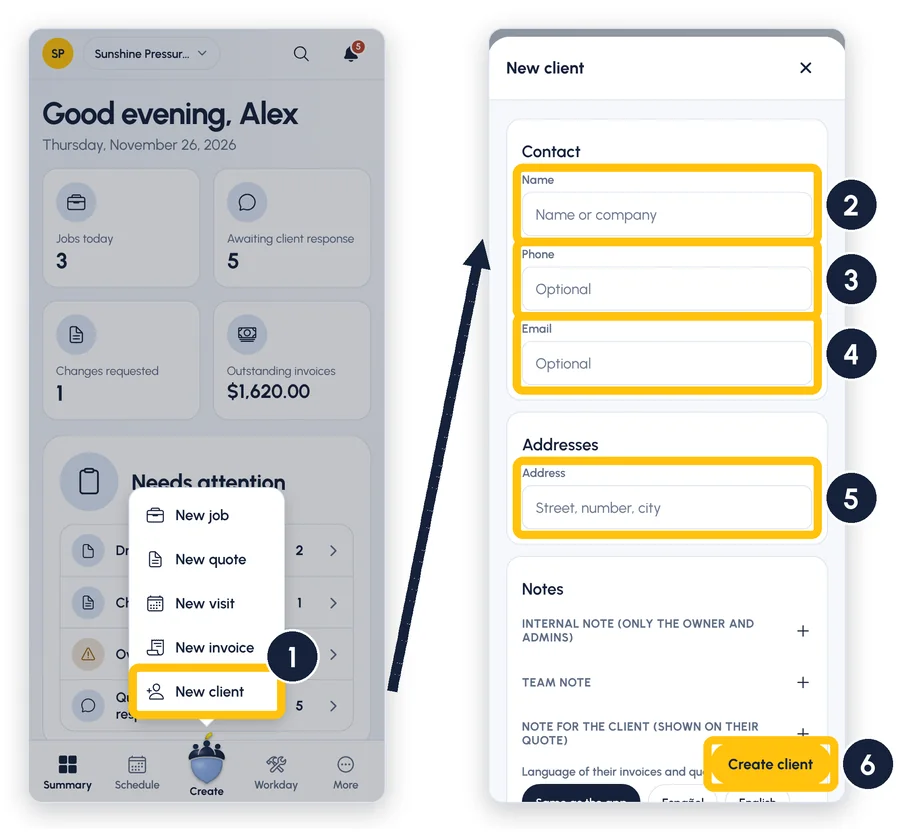
In Notes you can leave a private note, a note for your team, and choose the language of their quotes and invoices.
How to find a client and import your contacts
- 1Search by name, phone or address.
- 2Import contacts from your phone (.vcf) or a spreadsheet (.csv). You review the list before anything is created, and you can search to select only some, for example «client».
- 3Each card shows the next visit and what they owe. Tap it to open the client.
- 4The star marks a favorite. Favorites appear on your Summary.
- 5The yellow + creates a quote, job or invoice for that client.
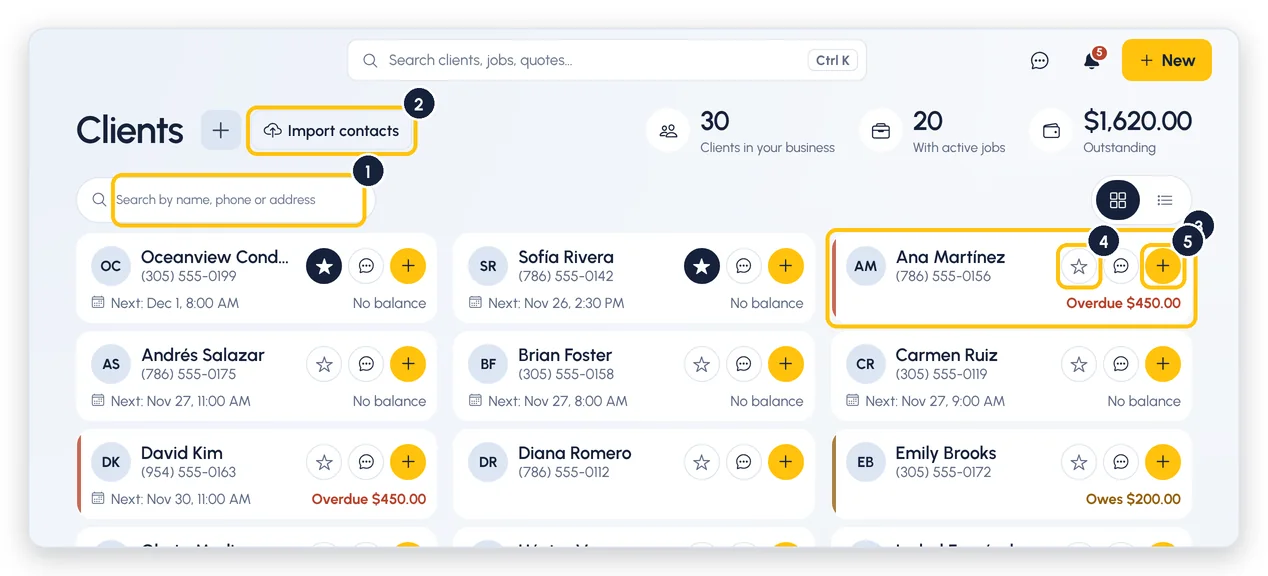
At the top you see how many clients you have, how many have active jobs and how much is outstanding.
- 1Search by name, phone or address.
- 2Each card shows the next visit and what they owe. Tap it to open the client.
- 3The star marks a favorite. Favorites appear on your Summary.
- 4The yellow + creates a quote, job or invoice for that client.
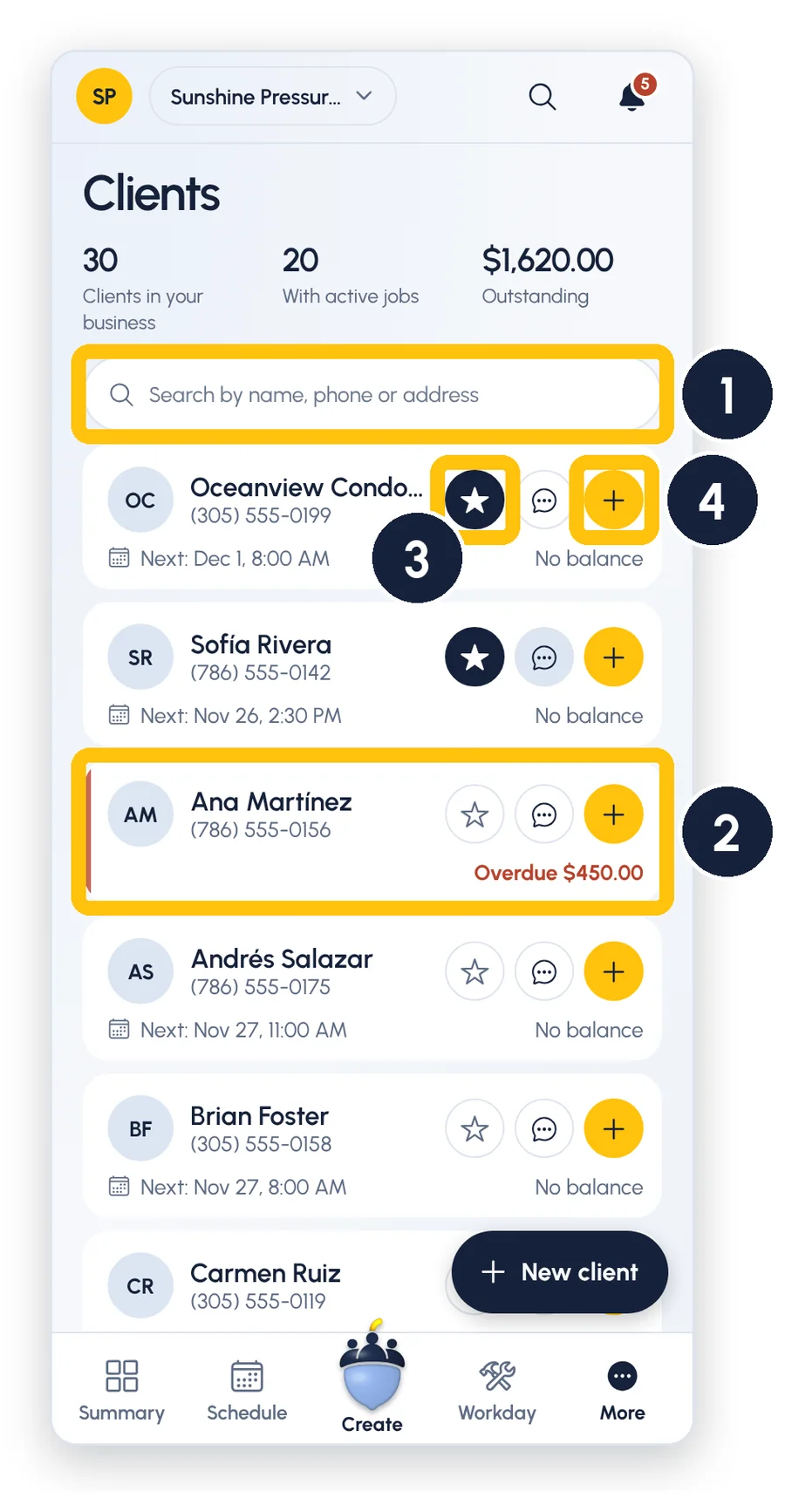
You’ll find Clients in More. To bring in your contacts (.vcf or .csv), tap Import contacts at the bottom of the list: you can search, for example «client», and import only those.
How to use the client card
- 1Call, Text, WhatsApp or Email with one tap. The copy icons copy the phone, email or address.
- 2Internal note: only you and your admins see it. Team note: your helpers see it, for example the gate code.
- 3Jobs: their jobs with date and status. Tap one to open it.
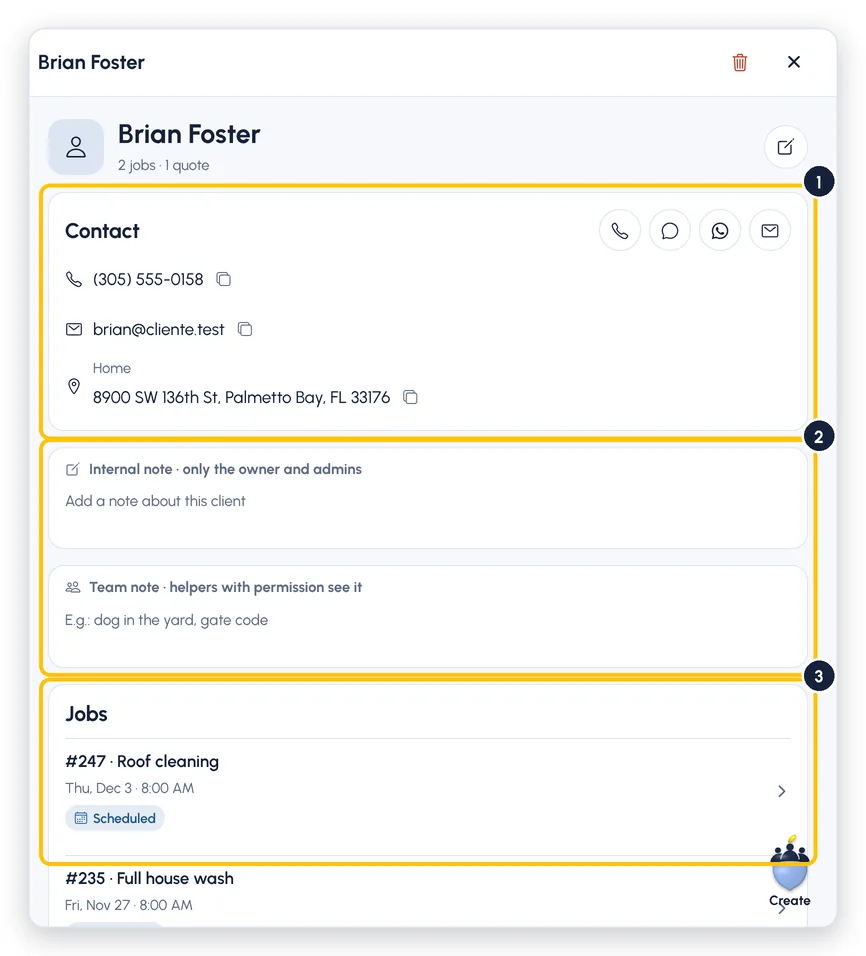
The pencil at the top edits the client. The trash can deletes them; this can’t be undone.
- 1Call, Text, WhatsApp or Email with one tap. The copy icons copy the phone, email or address.
- 2Internal note: only you and your admins see it. Team note: your helpers see it, for example the gate code.
- 3Jobs: their jobs with date and status. Tap one to open it.
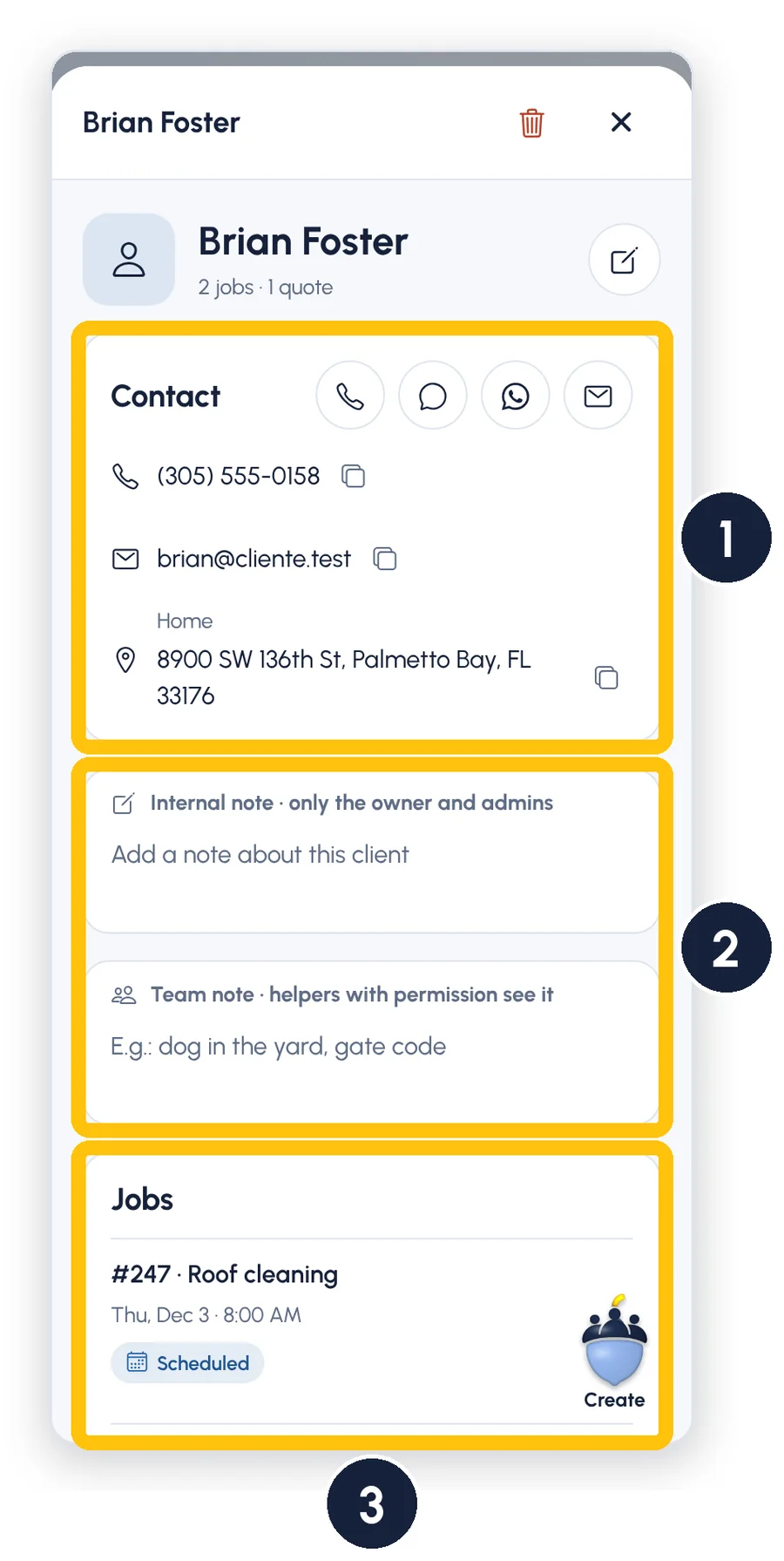
The pencil at the top edits the client. The trash can deletes them; this can’t be undone.